UBTECH Walker S2: Complete buying, setup and programming guide
A practical guide to the Walker S2 industrial humanoid and its EDU development configuration, including purchasing, setup, movement, programming and simulation. Public information reviewed November 17, 2026.

1. What is the Walker S2?
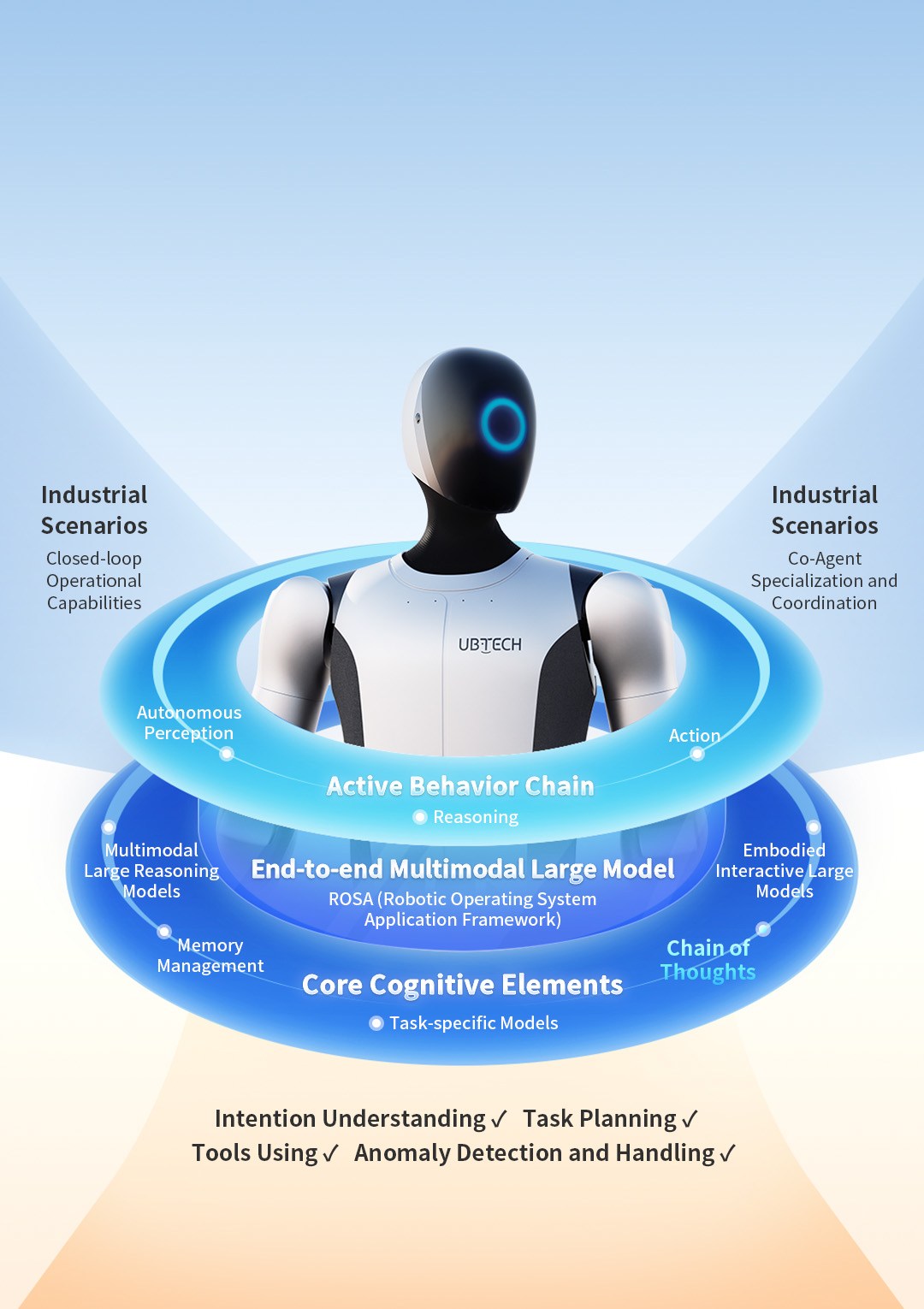
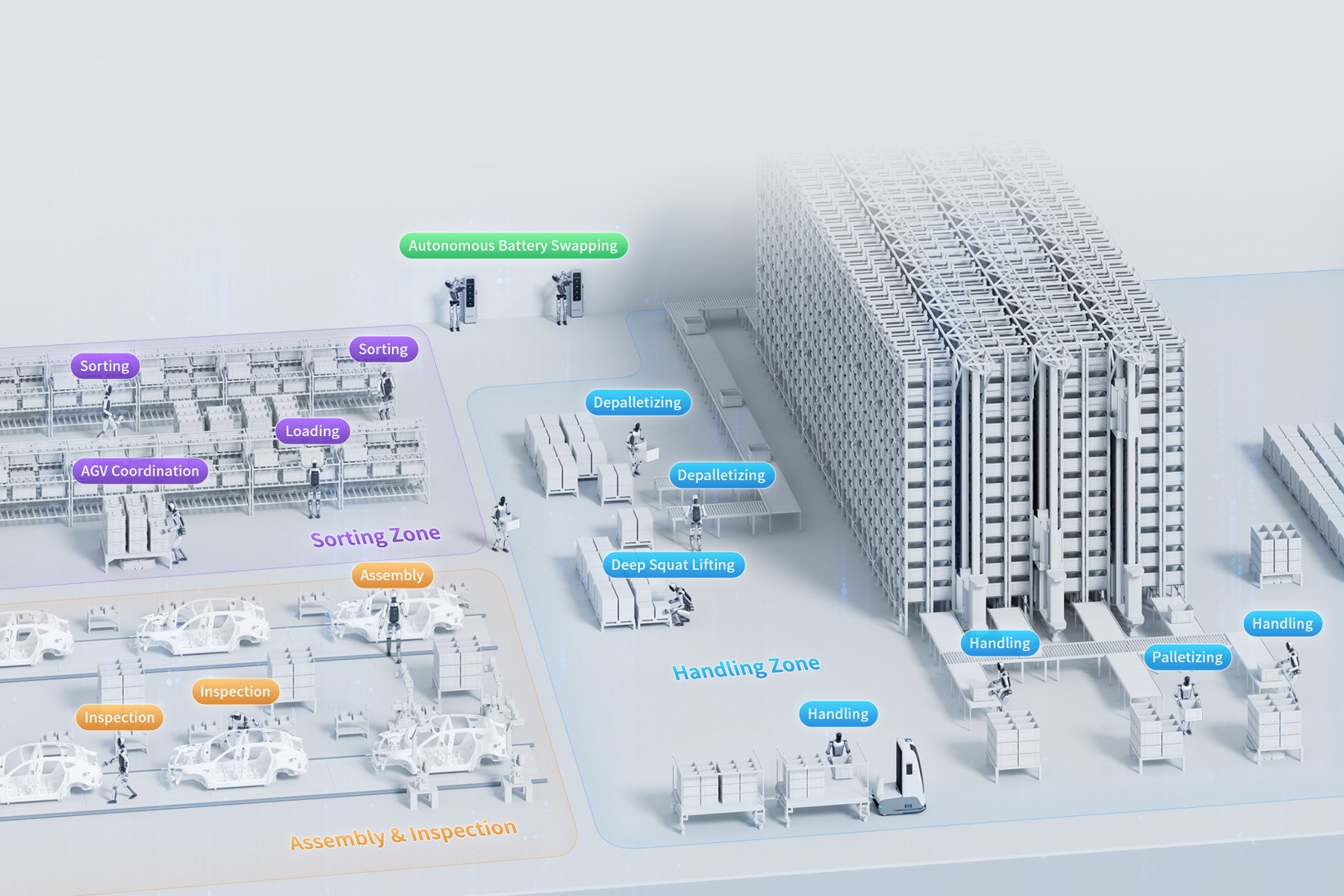
Walker S2 is an industrial bipedal humanoid robot developed by UBTECH Robotics for automotive factories, warehouses and production lines. Autonomous battery replacement is a central feature: the robot can replenish power without a person performing each battery exchange.
- Transporting goods and material boxes
- Component assembly
- Industrial quality inspection
- Manipulating parts
- Sorting products
- Loading and unloading
- Coordinating multiple robots in industrial workflows
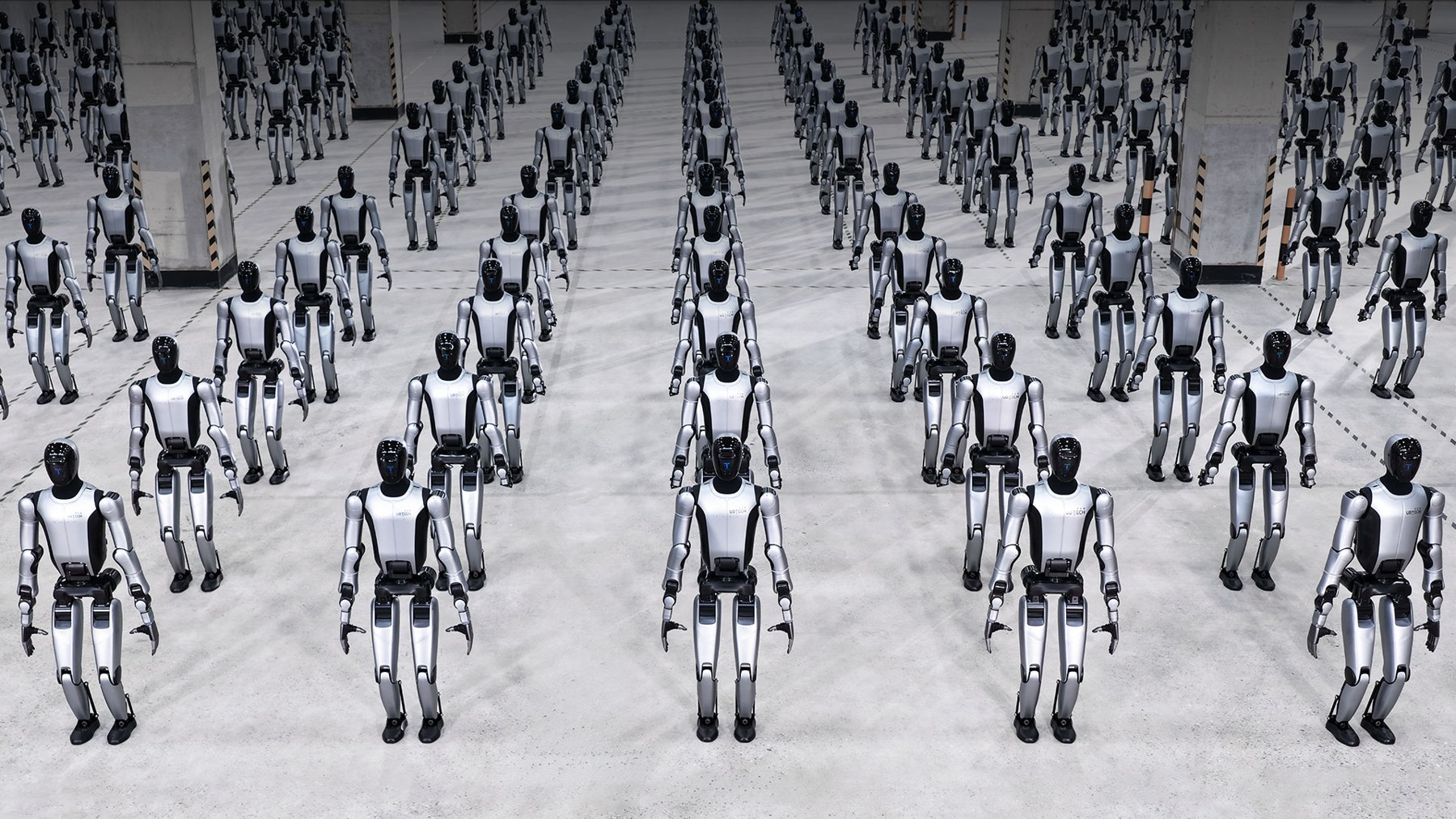
UBTECH began series production and deliveries in 2025. The company describes industrial cooperation, navigation and material-handling tasks rather than consumer household use.
2. Who created the Walker S2?
Zhou Jian is the founder, chairman and CEO of UBTECH Robotics. The company was established in Shenzhen, China, in March 2012 and listed on the Hong Kong Stock Exchange in December 2023. The first Walker was developed in 2018. The Walker S series later focused on industrial applications, followed by Walker S2 in 2025.

Walker S2 was developed by UBTECH engineering teams. The manufacturer has not identified a single engineer as the inventor of its battery-changing mechanism.
3. Technical specifications
| Specification | Walker S2 |
|---|---|
| Manufacturer | UBTECH Robotics |
| Country | China |
| Launch | 2025 |
| Height | 176 cm |
| Weight | 70 kg, excluding dexterous hands |
| Arm span | 177 cm, excluding dexterous hands |
| EDU configuration | 42 driven degrees of freedom |
| Industrial RobotShop kit | 52 degrees of freedom; supplier-listed configuration |
| Two-arm payload | Up to 15 kg total |
| Waist rotation | ±162° |
| Forward bending motion | 125° |
| Vertical work area | 0 to 1.8 m |
| Computing | x86 + NVIDIA Jetson Orin |
| Sensors | IMU, depth / RGB stereo and fisheye cameras, six-axis force sensors |
| Power supply | 48 V battery system |
| Runtime | 2.5 hours in the published reference configuration |
| Operating system | Ubuntu + ROSA 2.0 |
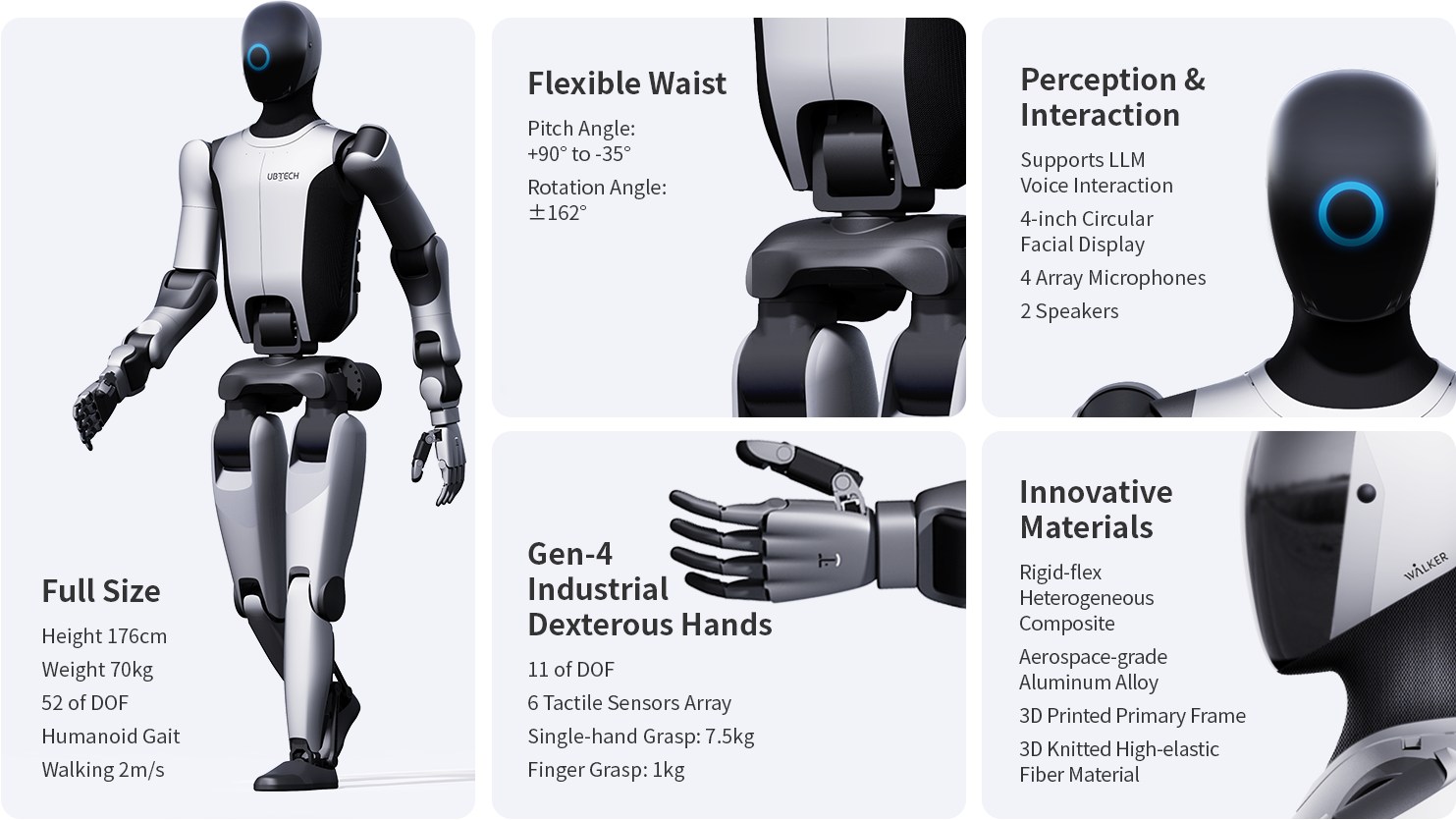
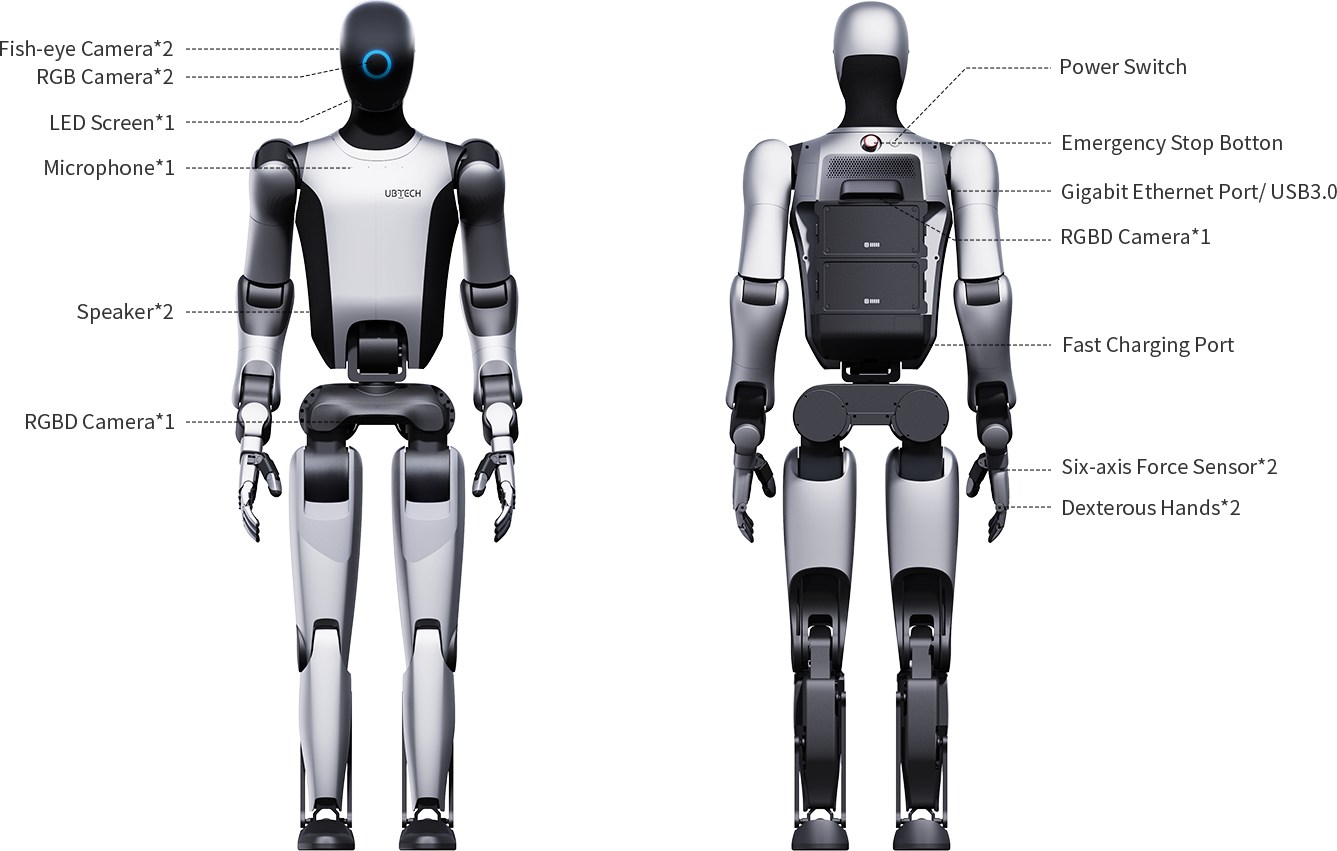
The EDU manual describes 2 head joints, 7 joints per arm, 2 waist joints, 6 joints per leg and 6 per hand, totaling 42. RobotShop lists a configuration with fourth-generation 11-DoF hands and 52 DoF. Confirm the exact variant and controller joint map before ordering. The 15 kg rating is a combined two-arm load, not 15 kg for each arm. Floor-level picking and placement at chest height impose different joint loads; test the actual object geometry, grip, center of mass, lifting speed and repetitions.
4. How does autonomous battery swapping work?

Two battery packs allow one pack to maintain power while the robot replaces the other. The battery-management controller monitors each pack and selects charging or replacement based on priorities and remaining energy. UBTECH quotes approximately three minutes for the exchange itself.
Continuous 24-hour operation depends on a functioning station, charged spare batteries, a clear route and successful docking. Three minutes does not include every potential delay in reaching the station or waiting for a replacement. A site trial should measure docking, recovery, actual idle time and return to work. Define a low-power safe state, station fault response and human access procedure if a swap fails.
5. How much does the Walker S2 cost?
RobotShop lists the Walker S2 industrial kit at US$246,600 and identifies it as an on-demand, non-stocked product. The listed kit contains the robot, dexterous hands and a charging station with two batteries. The US listing includes tariffs; shipping is calculated separately. UBTECH has not published a universal retail list price. This is a distributor listing, not a confirmed global manufacturer price.
RobotShop product listing and quotationhttps://www.robotshop.com/products/ubtech-walker-s2-industrial-humanoid-robot
6. How to buy and order the Walker S2
The industrial version can be requested directly from UBTECH or through a distributor. For research, ask specifically about Walker S2 EDU and EDU Explorer.
| Supplier | Contact |
|---|---|
| UBTECH industrial projects | cooperate@ubtrobot.com |
| UBTECH education and research | UBTECH.EDU@ubtrobot.com |
| RobotShop | Request a quotation or special order from the product listing |
- Identify your company or research laboratory and describe the tasks and environment.
- Confirm which hardware and hand configuration you are buying.
- Request the SDK access and software licenses in writing.
- Confirm training, warranty, spare parts, service and the delivery schedule.
- Request shipping, import requirements and the complete landed cost for your country.
7. Equipment and tools needed
A safe commissioning setup requires the robot, a compatible official battery station and charger, charged batteries, a rated suspension stand and lifting accessories, the manufacturer remote controller, an Ethernet cable, a development computer and a protected test area.
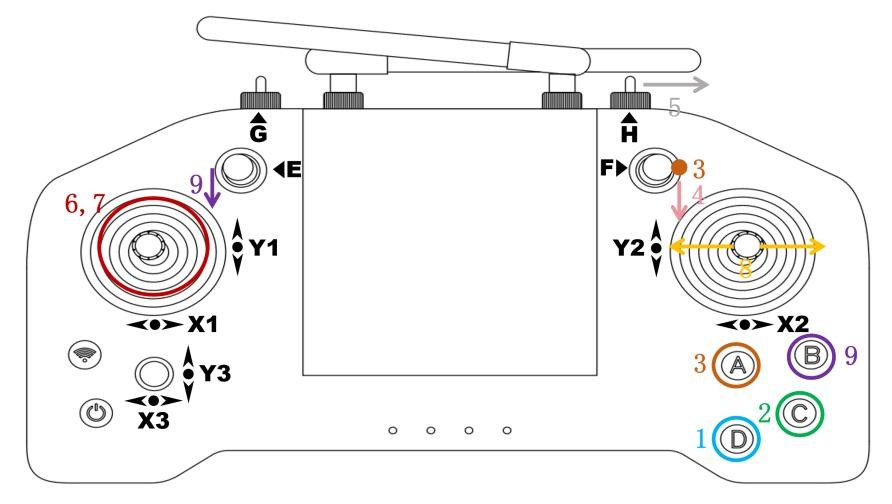
The industrial manual specifies a level dry surface with obstacles removed and a minimum operating separation of 1.5 m. The suspension system and manufacturer training are essential for initial tests. Use the specified charging equipment and do not disassemble the battery or servos.
8. How to start the Walker S2
Both the industrial manual and the EDU SDK guide describe initial power-up with the robot suspended from the approved support. Only trained operators should carry out commissioning. The EDU SDK guidance calls for at least 20 cm clearance between the feet and the floor during initial debugging.
- Secure the robot on the approved suspension stand, following the hardware manual.
- Check the batteries, body, workspace and emergency stop status.
- Use the main power switch at the back.
- Hold the rear startup button until the head display lights up.
- Allow approximately one minute for booting.
- Activate the servo controls and verify the leg indicators.
- Perform homing and initialization with the approved remote and instructions.
Do not turn off servo power while the robot is unsupported and standing; it can fall. Follow the manufacturer’s supported shutdown procedure and confirm the emergency-stop location before any movement.
9. How to make the Walker S2 walk

The integrated walking controller can be operated with the documented remote. The following commands apply only when the delivered hardware, firmware and remote configuration match the manual.
| Remote command | Function |
|---|---|
| H centered + A | Force-controlled standing and balance |
| H left, then return to center | Walking mode |
| Y1 | Forward or backward |
| X1 | Lateral movement |
| X2 | Turn left or right |
The head-mounted passive RGB stereo pair estimates depth from image correspondence, and the motion controller uses body-state feedback to balance. Keep initial movement slow and supervised in a protected approved area. Vision alone does not prove safe avoidance of people near the robot or battery station; test stopping distances and fault handling.
Official remote controller guidehttps://docs.ubtrobot.com/walker-s2-edu/docs/user-guide/7/
10. How to make the Walker S2 run
The Walker S2 documentation includes a running mode. After a correct initialization and under trained supervision, the manual documents H to the right and back to center to select running. To stop, transition back to walking mode with H to the left and back to center, then use A as directed in the matching manual.
The EDU configuration uses learning-based motion control, including reinforcement learning. No verified maximum running speed was found. Running requires a protected test space, adequate clearance and an approved trial plan; never test it around bystanders.
11. How to make the Walker S2 dance
UBTECH documents task-flow execution on the remote controller, but a public catalogue of built-in Walker S2 dances has not been verified. Custom choreography is a motion-development project.
Human movement can be recorded, retargeted to the robot’s joint configuration, converted into timed trajectories and checked in a physics simulator. Evaluate collision risk, balance, ground contact and joint limits before any approved physical execution.
12. Software and development tools
| Software or tool | Purpose |
|---|---|
| Ubuntu 22.04 | Development environment |
| ROSA 2.0 | UBTECH robot operating software |
| ROS 2 | Robot communication, sensor interfaces and software integration |
| Python | Robot programs and machine learning |
| C++ | Control and robotics software |
| NVIDIA Isaac Sim | Physics simulation |
| Thinker Studio | Teleoperation and recording robot data |
| LeRobot | Training robot policies |
| Docker | Containerized development environment |
| BrainNet 2.0 | Coordination of multiple robots |
| Co-Agent | Organizing and executing industrial tasks |
| Pico | Compatible teleoperation device for Walker S2 EDU Explorer |
Thinker Studio has a documented workflow for the EDU Explorer with Pico control, motion retargeting and camera and arm-joint data collection. The Global Humanoid Robot Challenge 2026 also offers a simulation and training environment specifically based on Walker S2. These environments must match the robot version.
13. How to program the Walker S2
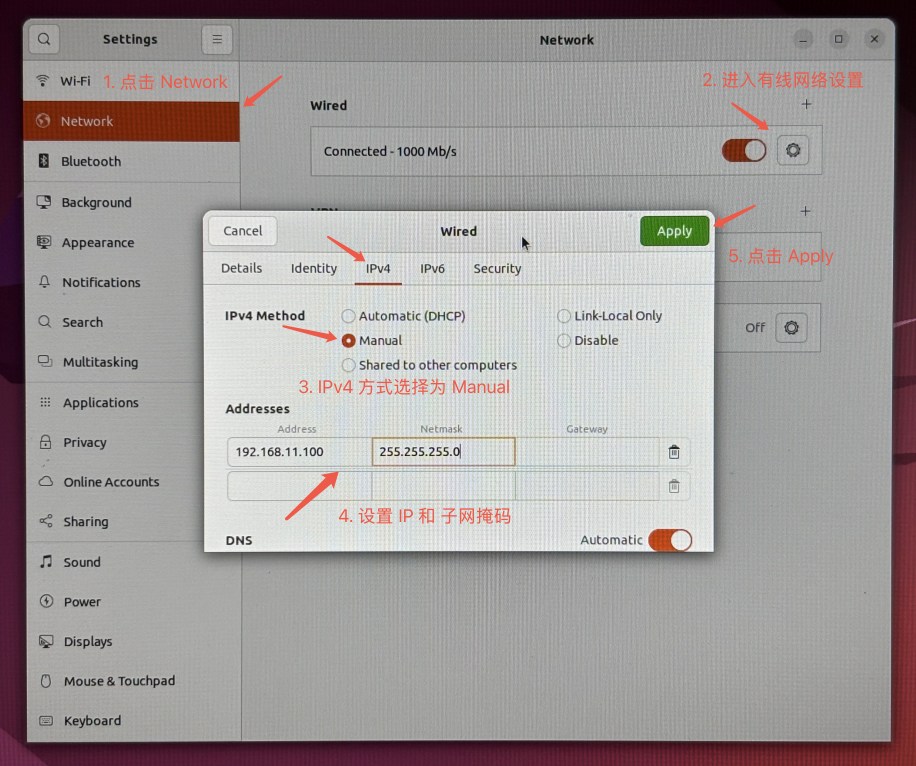
For SDK development with Walker S2 EDU, connect the computer to the robot Ethernet port and configure a static IPv4 address on the matching network. The documented example is:
| Device or setting | Address |
|---|---|
| External computer | 192.168.11.99 |
| PC1 x86 | 192.168.11.2 |
| PC2 ARM | 192.168.11.3 |
| Subnet mask | 255.255.255.0 |
| SSH port | 2222 |
Connect to the authorized ROS 2 environment using the credentials assigned by your supplier:
ssh -p 2222 ubt@192.168.11.2Read the developer mode state:
ros2 topic echo /sys/state/walker_modeEntering developer mode stops the integrated motion-control program and provides direct motor-control access. Do not enter that mode with the robot unsupported. Secure the robot on the approved stand, use the correct SDK and verify controller initialization before any independent motor control.
Robot control architecture
14. How to learn without buying the robot
UBTECH provides an official simulation environment for Walker S2 through the 2026 Global Humanoid Robot Challenge. Beginners can study perception and manipulation without owning the physical robot.
- Walker S2 physics model in NVIDIA Isaac Sim
- Keyboard teleoperation and data collection
- Standardized LeRobot datasets
- ACT and Pi0 imitation learning methods
- Official pretrained weights and training resources
- A 20-dimensional state space with 14 arm joints, 4 gripper joints and 2 gripper control commands
The stated minimum hardware configuration is 32 GB RAM and an NVIDIA RTX 4080. The challenge environment focuses on manipulation and is not proof of a verified whole-body running or dancing policy.
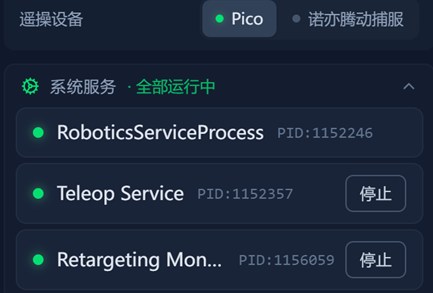
For EDU Explorer teleoperation, the documented Thinker Studio workflow uses a matching robot body version, Ubuntu 22.04, Ethernet, Pico input and the retargeting services. Camera and arm-joint recordings can be inspected and exported after collection.
Official documentation and sources
Manufacturer specifications and demonstrations are attributed to UBTECH or the identified industrial supplier. These are not independent test results. Follow the manual for the exact delivered configuration.
UBTECH Walker S2 official product pagehttps://www.ubtrobot.com/en/humanoid/products/walker-s2
UBTECH company profile and contactshttps://www.ubtrobot.com/en/about/company-profile
UBTECH founder and governancehttps://www.ubtrobot.com/en/investor-relations
Walker S2 EDU product specificationshttps://docs.ubtrobot.com/walker-s2-edu/docs/user-guide/6/
Walker S2 EDU SDK quick starthttps://docs.ubtrobot.com/walker-s2-edu/docs/sdk/5/
Walker S2 remote controller manualhttps://docs.ubtrobot.com/walker-s2-edu/docs/user-guide/7/
Industrial Walker S2 complete manual (PDF)https://cdn.robotshop.com/media/U/Ubt/RB-Ubt-37/pdf/ubtech-walker-s2-product%20manual.pdf
Thinker Studio Walker S2 EDU Explorerhttps://docs.ubtrobot.com/Thinker_studio/en/docs/4/
GHRC 2026 simulation and traininghttps://docs.ubtrobot.com/GHRC2026_TechnicalDocuments/en/docs/1/
UBTECH developer communityhttps://thinkercosmos.ubtrobot.com/
RobotShop price and kithttps://www.robotshop.com/products/ubtech-walker-s2-industrial-humanoid-robot
Walker S2: buying, commissioning and lifetime support
Use this ownership checklist alongside the detailed technical guide. Product claims and original profile data are distinct from the suggested acceptance tests. Additional official sources consulted on 24 November 2026 where available.
| Item | Existing configuration record |
|---|---|
| Configuration | S2 industrial humanoid |
| Commercial status | Availability unconfirmed |
| Price and ordering record | Contact UBTECH for the S2 configuration, price, installation and delivery terms. The reviewed page does not establish an open retail delivery schedule. |
| Published payload | 15 kg; Manufacturer load claim within a 0 to 1.8 m workspace. Per-arm allocation is not specified. |
Where to buy and what the price includes
Ask UBTECH for an industrial package specifying robot count, battery cabinets, workcell support and commissioning. No universal retail quote is established here.
Official sales / product information
Request an itemized landed cost: robot and options, charger and spare packs, shipping, import duties, commissioning, software subscription, staff training, spare parts and service. Confirm currency, region, warranty exclusions and acceptance terms in writing.
Installation, software and first commissioning
The industrial robot uses coordinated whole-body control; obtain the supported task-development and fleet interfaces from UBTECH for the purchased configuration.
- Sensors and joint feedback
- State estimation / task control
- Approved motion controller
- Actuators and end effector
- Measured task result
Feedback, fault detection and the approved stop function constrain the command path.
On delivery, match serial number, options and manual; inspect for shipping damage, prepare the manufacturer-approved workspace, verify stop functions with the installer, connect only the documented controller and establish a read-only diagnostic baseline. Perform the first motion under manufacturer supervision where required.
Firmware and software updates
Use the vendor’s service procedure and approved battery equipment; verify work-order resumption and cabinet interoperability after an update.
Official documentation / releases
Before changing versions, save calibration, configuration, task scripts and logs where export is supported. Review compatibility and recovery policy, schedule downtime, maintain the required power and network conditions, and test the same approved task after the update. A downgrade is only appropriate if supported by the vendor.
Battery, charging and usable service life
UBTECH describes a dual-battery system with autonomous exchange within 3 minutes. This does not specify cycle life or the duration of every task.
Official power or product record
Battery cycle life and robot service life are different. Equivalent full cycles (EFC) can be estimated as cumulative discharged energy (Wh) divided by initial usable pack energy (Wh). State of health (SOH) is measured usable capacity divided by baseline usable capacity × 100%, under comparable conditions. Example only: 1,800 Wh discharged from a 600 Wh reference pack equals 3 EFC; neither number is a specification for this robot. Ask for the manufacturer’s cycle rating, temperature limits, capacity-retention criterion and warranty. Do not use an arbitrary percentage as a replacement threshold.
Maintenance and common failure checks
| When | Inspection and evidence |
|---|---|
| Before operation | Track failed battery exchanges, alignment at the cabinet, connector wear and arm tracking during repeated material transfer. |
| After a fault or impact | Do not restart a damaged robot. Capture fault code, timestamp, joint feedback and power state; have the vendor identify the cause before clearing faults. |
| After software or parts change | Record versions and replaced part serials; compare the same approved test with the earlier baseline. Stop on new errors or unexpected movement. |
| At manufacturer service intervals | Use the documented interval and authorized service procedures. No universal calendar or lubricant is assumed. |
| At end of service | Ask about spare-part availability, data removal, battery take-back and local electronics recycling. |
What is still missing before purchase
Confirm the battery cycle rating, warranty and service life for this exact serial-numbered configuration, along with spare-part lead times, repair turnaround, supported software versions and end-of-support dates. These are procurement questions, not invented published values. Record the actual task success rate, intervention count and productive hours in your acceptance trial.
How to install the software mentioned on this page
Choose only the tools required for your project. The commands below describe development and simulation setup, not proof of compatibility with a specific physical robot. Match the versions in the original project and test offline before connecting hardware.
Python Windows, macOS, Linux
Install the Python release required by your robot or library. On Windows use the official installer; on Ubuntu use the distribution package. Create a separate virtual environment for each project.
Installation / setup commands
python -m venv .venv
# Windows PowerShell:
.\.venv\Scripts\Activate.ps1
# Linux or macOS:
source .venv/bin/activate
Verify the installation
python --version
python -m pip --version
Official instructions: https://www.python.org/downloads/
NVIDIA Isaac Sim Supported Windows/Linux workstation with compatible NVIDIA GPU
Check NVIDIA's GPU, driver, OS and Python compatibility matrix. This is a documented example for Isaac Sim 5.1.0 in a Python 3.11 virtual environment; use the release required by your project and accept the applicable license when prompted. Do not mix incompatible releases.
Installation / setup commands
python -m pip install --upgrade pip
python -m pip install "isaacsim[all,extscache]==5.1.0" --extra-index-url https://pypi.nvidia.com
Verify the installation
python -m pip show isaacsim
isaacsim
Official instructions: https://docs.isaacsim.omniverse.nvidia.com/5.1.0/installation/install_python.html
ROS 2 (Jazzy example) Ubuntu 24.04 for Jazzy; other distributions have different instructions
On Ubuntu 24.04 first configure the official ROS apt repository using the documented ros2-apt-source procedure. Then install Jazzy desktop. Use the distribution required by your robot; for example Humble normally uses Ubuntu 22.04.
Installation / setup commands
sudo apt update
sudo apt install ros-jazzy-desktop
source /opt/ros/jazzy/setup.bash
Verify the installation
ros2 --help
Official instructions: https://docs.ros.org/en/jazzy/Installation/Ubuntu-Install-Debs.html
LeRobot Supported Python environment
Check the official installation guide for the current Python version, FFmpeg and hardware extras. Create an isolated environment; install the package, then select the extra required for your particular robot or simulation.
Installation / setup commands
python -m pip install lerobotVerify the installation
python -m pip show lerobot
Official instructions: https://huggingface.co/docs/lerobot/installation
Docker Linux, Windows, macOS
Install Docker Engine on Linux or Docker Desktop on a supported desktop platform. For GPU containers, follow the NVIDIA Container Toolkit instructions for the host. Use images and tags specified by the project.
Verify the installation
docker --version
docker run --rm hello-world
Official instructions: https://docs.docker.com/get-docker/
Ubuntu PC / virtual machine
Choose the Ubuntu release supported by your robot SDK, ROS or simulator. Download the official ISO or use a supported virtual machine. Back up the computer before installing or changing partitions.
Verify the installation
lsb_release -a
Official instructions: https://ubuntu.com/download/desktop
C++ toolchain Windows, macOS, Linux
On Ubuntu install the compiler and build tools; on Windows install the C++ workload for Visual Studio Build Tools or the toolchain required by the SDK. On macOS use the required Xcode Command Line Tools.
Installation / setup commands
sudo apt update
sudo apt install build-essential
Verify the installation
g++ --version
Official instructions: https://gcc.gnu.org/
Manufacturer SDK / robot software Exact robot model and firmware version
Check whether the manufacturer provides a public SDK or a licensed developer package for this edition. Obtain the matching release and installation manual from the manufacturer. Install its documented dependencies in an isolated environment and run the offline import or simulator check. Do not flash firmware or send motor commands during installation.
Verify the installation
Confirm supported model, OS, SDK and firmware version. If no public installer is documented, request developer access from the manufacturer.